In this post I will be explaining how we can utilize starndard xml tags for formatting data in excel.The use of this approach would eliminate the need of external apis. With standard xml approach we could download data into excel, but we could not do any formatting in the excel file. But this approach also provides lots of flexibility in formatting the excel file. The first thing comes into mind when we hear the word formatting is changing font of the text. But this time we would try to do something beyond the traditional way of formatting e.g. merging of cells, adding drop downs, fixing width of a cell etc.
Note!
Below hierarchy contains only list of tags which we can use in XML document, but doesn’t mention about attributes available for each to use. For full reference on this please visit XML Spreadsheet Reference.
All of the formatting needed in the excel sheet are encapsulated in the <ss:Styles></ss:Styles> section or they can be specified individually for each cell within the tag <ss:Cell></ss:Cell>.
Save this code into an .xml file and open with excel to see whether your code is correct.Now all you have to do is to generate a xml string programmatically and download into .xml file.
By Geoff Albin, 2014/01/03 (first published: 2010/12/13)
Receive Deadlock detail via email.
I had spent many hours on Google trying to find the best way to send a notification on deadlock occurrences. While it was a fairly straight forward process on how we get notified a deadlock has occurred, I wanted a bit more. I not only wanted to be told when the Deadlock occurred, I wanted to also be emailed the actual Deadlock information.
Every time a deadlock occurs in SQL Server, the detailed info about things like the SPID, the statement that was running, who the victim was, and so on does get logged. But getting the generic alert that SQL Server can create simply will tell you “something” has occurred. It would be the dutiful DBA’s job to log into the server in question and dig into the Error Log to get the Deadlock details.
Since capturing Deadlock info is not turned on by default. We do have to do two things in order to make the scripts I have written work properly.
Requirement number one
The first requirement is to turn on the appropriate Trace Flags. We do that by running the following command.
DBCC TRACEON (3605,1204,1222,-1)
A brief overview to what those flags do is listed below.
3605 = write what we want to the error log.
1204 = Capture Deadlock Events.
1222 = Capture Deadlock Events with more info (SQL 2005 and higher)
It is important to note that setting trace flags this way will only work until the next time SQL Server is restarted. If you want to make sure your trace flags are always set this way, you can edit the startup options of SQL Server by using the -T switch or creating a SQL Agent job to run that code when the Agent starts.
Requirement number two
The second requirement is to ensure you have DB Mail setup and working. I will provide no detail on how to accomplish that. It will just be assumed that you have a working DB Mail profile.
Lets get started.
So now we have trace flags set and DB Mail is working we are ready to get into how we send the Deadlock information to an email address when a Deadlock occurs.
Since the structure of the error log changed in SQL 2005, we have two ways of doing this. Each method is basically the same, however, pay attention to where you deploy this script. I have included detailed comments so you can follow along.
For SQL Server 2000
--== This is for SQL 2000. ==----== We will create a temporary table to hold the error log detail. ==----== Before we create the temporary table, we make sure it does not already exist. ==--IF OBJECT_ID('tempdb.dbo.ErrorLog')ISNotNullBEGINDROPTABLE tempdb.dbo.ErrorLog
END--== We have checked for the existence of the temporary table and dropped it if it was there. ==----== Now, we can create the table called tempdb.dbo.ErrorLog ==--CREATETABLE tempdb.dbo.ErrorLog (Id intIDENTITY(1,1)NOTNULL,
ERRORLOG VARCHAR(4000), ContRow int)--== We create a 3 column table to hold the contents of the SQL Server Error log. ==----== Then we insert the actual data from the Error log into our newly created table. ==--INSERTINTO tempdb.dbo.ErrorLog
EXEC master.dbo.sp_readerrorlog
--== With our table created and populated, we can now use the info inside of it. ==--BEGIN--== Set a variable to get our instance name. ==----== We do this so the email we receive makes more sense. ==--declare@servername nvarchar(150)set@servername =@@servername
--== We set another variable to create a subject line for the email. ==-- declare@mysubject nvarchar(200)set@mysubject ='Deadlock event notification on server '+@servername+'.'--== Now we will prepare and send the email. Change the email address to suite your environment. ==-- exec master.dbo.xp_sendmail @recipients ='DBA_Super_Hero@email.com',@subject =@mysubject,@message ='Deadlock has occurred. View attachment to see the deadlock info',@query ='select ERRORLOG from tempdb.dbo.ErrorLog where Id >= (select TOP 1 Id from tempdb.dbo.ErrorLog WHERE ERRORLOG Like ''%Deadlock encountered%'' order by Id DESC)',@width =600,@attach_results ='True',@no_header ='True'END--== Clean up our process by dropping our temporary table. ==--DROPTABLE tempdb.dbo.ErrorLog
And for all other version, (2005, 2008, 2008 R2)
--== This is for SQL 2005 and higher. ==----== We will create a temporary table to hold the error log detail. ==----== Before we create the temporary table, we make sure it does not already exist. ==--IF OBJECT_ID('tempdb.dbo.ErrorLog')ISNotNullBEGINDROPTABLE tempdb.dbo.ErrorLog
END--== We have checked for the existence of the temporary table and dropped it if it was there. ==----== Now, we can create the table called tempdb.dbo.ErrorLog ==--CREATETABLE tempdb.dbo.ErrorLog (Id intIDENTITY(1,1)NOTNULL,
logdate DATETIME, procInfo VARCHAR(10), ERRORLOG VARCHAR(MAX))--== We create a 3 column table to hold the contents of the SQL Server Error log. ==----== Then we insert the actual data from the Error log into our newly created table. ==--INSERTINTO tempdb.dbo.ErrorLog
EXEC master.dbo.sp_readerrorlog
--== With our table created and populated, we can now use the info inside of it. ==--BEGIN--== Set a variable to get our instance name. ==----== We do this so the email we receive makes more sense. ==--declare@servername nvarchar(150)set@servername =@@servername
--== We set another variable to create a subject line for the email. ==-- declare@mysubject nvarchar(200)set@mysubject ='Deadlock event notification on server '+@servername+'.'--== Now we will prepare and send the email. Change the email address to suite your environment. ==-- EXEC msdb.dbo.sp_send_dbmail @recipients='DBA_Super_Hero@email.com',@subject =@mysubject,@body ='Deadlock has occurred. View attachment to see the deadlock info',@query ='select logdate, procInfo, ERRORLOG from tempdb.dbo.ErrorLog where Id >= (select TOP 1 Id from tempdb.dbo.ErrorLog WHERE ERRORLOG Like ''%Deadlock encountered%'' order by Id DESC)',@query_result_width =600,@attach_query_result_as_file =1END--== Clean up our process by dropping our temporary table. ==--DROPTABLE tempdb.dbo.ErrorLog
Next Steps
In order to get those to work every time SQL Server encounters a Deadlock, we have to create a SQL Server Agent Job and a SQL Server Agent Alert. The basic approach is to create a Job that is called by the Alert service.
Let’s first create a SQL Agent Job. The job will have no schedule. Note that the script below needs to be edited. If you do not run your SQL Server in mixed mode, you will need to change @owner_login_name=N’sa’to a user that can run the job. Also, note that the script contains an email address. You will have to enter a valid email address. This would be the email address of the person that will be troubleshooting the Deadlock occurrences. You will create this SQL Agent job on every instance you want to receive Deadlock info for.
SQL Server 2000 Job
USE[msdb]
GO
BEGINTRANSACTIONDECLARE@ReturnCode INTSELECT@ReturnCode =0IFNOTEXISTS(SELECT name FROM msdb.dbo.syscategories WHERE name=N'[Uncategorized (Local)]'AND category_class=1)BEGINEXEC@ReturnCode = msdb.dbo.sp_add_category @class=N'JOB',@type=N'LOCAL',@name=N'[Uncategorized (Local)]'IF(@@ERROR <>0OR@ReturnCode <>0)GOTO QuitWithRollback
ENDDECLARE@jobId BINARY(16)EXEC@ReturnCode = msdb.dbo.sp_add_job @job_name=N'Deadlock Job',@enabled=1,@notify_level_eventlog=0,@notify_level_email=0,@notify_level_netsend=0,@notify_level_page=0,@delete_level=0,@description=N'No description available.',@category_name=N'[Uncategorized (Local)]',@owner_login_name=N'sa',@job_id =@jobId OUTPUT
IF(@@ERROR <>0OR@ReturnCode <>0)GOTO QuitWithRollback
EXEC@ReturnCode = msdb.dbo.sp_add_jobstep @job_id=@jobId,@step_name=N'Deadlock has occurred.',@step_id=1,@cmdexec_success_code=0,@on_success_action=1,@on_success_step_id=0,@on_fail_action=2,@on_fail_step_id=0,@retry_attempts=0,@retry_interval=0,@os_run_priority=0,@subsystem=N'TSQL',@command=N'--== This is for SQL 2000. ==--
--== We will create a temporary table to hold the error log detail. ==--
--== Before we create the temporary table, we make sure it does not already exist. ==--
IF OBJECT_ID(''tempdb.dbo.ErrorLog'') IS Not Null
BEGIN
DROP TABLE tempdb.dbo.ErrorLog
END
--== We have checked for the existence of the temporary table and dropped it if it was there. ==--
--== Now, we can create the table called tempdb.dbo.ErrorLog ==--
CREATE TABLE tempdb.dbo.ErrorLog (Id int IDENTITY (1, 1) NOT NULL,
ERRORLOG VARCHAR(4000), ContRow int)
--== We create a 3 column table to hold the contents of the SQL Server Error log. ==--
--== Then we insert the actual data from the Error log into our newly created table. ==--
INSERT INTO tempdb.dbo.ErrorLog
EXEC master.dbo.sp_readerrorlog
--== With our table created and populated, we can now use the info inside of it. ==--
BEGIN
--== Set a variable to get our instance name. ==--
--== We do this so the email we receive makes more sense. ==--
declare @servername nvarchar(150)
set @servername = @@servername
--== We set another variable to create a subject line for the email. ==--
declare @mysubject nvarchar(200)
set @mysubject = ''Deadlock event notification on server ''+@servername+''.''
--== Now we will prepare and send the email. Change the email address to suite your environment. ==--
exec master.dbo.xp_sendmail @recipients = ''DBA_Super_Hero@email.com'',
@subject = @mysubject,
@message = ''Deadlock has occurred. View attachment to see the deadlock info'',
@query = ''select ERRORLOG from tempdb.dbo.ErrorLog where Id >= (select TOP 1 Id from tempdb.dbo.ErrorLog WHERE ERRORLOG Like ''''%Deadlock encountered%'''' order by Id DESC)'',
@width = 600,
@attach_results = ''True'',
@no_header = ''True''
END
--== Clean up our process by dropping our temporary table. ==--
DROP TABLE tempdb.dbo.ErrorLog
',@database_name=N'master',@flags=0IF(@@ERROR <>0OR@ReturnCode <>0)GOTO QuitWithRollback
EXEC@ReturnCode = msdb.dbo.sp_update_job @job_id =@jobId,@start_step_id =1IF(@@ERROR <>0OR@ReturnCode <>0)GOTO QuitWithRollback
EXEC@ReturnCode = msdb.dbo.sp_add_jobserver @job_id =@jobId,@server_name = N'(local)'IF(@@ERROR <>0OR@ReturnCode <>0)GOTO QuitWithRollback
COMMITTRANSACTIONGOTO EndSave
QuitWithRollback:IF(@@TRANCOUNT >0)ROLLBACKTRANSACTION
EndSave:
GO
SQL Server 2005 and higher Job
Note that the script below needs to be edited. If you do not run your SQL Server in mixed mode, you will need to change @owner_login_name=N’sa’to a user that can run the job. Also, note that the script contains an email address. You will have to enter a valid email address. This would be the email address of the person that will be troubleshooting the Deadlock occurrences. You will create this SQL Agent job on every instance you want to receive Deadlock info for.
USE[msdb]
GO
BEGINTRANSACTIONDECLARE@ReturnCode INTSELECT@ReturnCode =0IFNOTEXISTS(SELECT name FROM msdb.dbo.syscategories WHERE name=N'[Uncategorized (Local)]'AND category_class=1)BEGINEXEC@ReturnCode = msdb.dbo.sp_add_category @class=N'JOB',@type=N'LOCAL',@name=N'[Uncategorized (Local)]'IF(@@ERROR <>0OR@ReturnCode <>0)GOTO QuitWithRollback
ENDDECLARE@jobId BINARY(16)EXEC@ReturnCode = msdb.dbo.sp_add_job @job_name=N'Deadlock Job',@enabled=1,@notify_level_eventlog=0,@notify_level_email=0,@notify_level_netsend=0,@notify_level_page=0,@delete_level=0,@description=N'No description available.',@category_name=N'[Uncategorized (Local)]',@owner_login_name=N'sa',@job_id =@jobId OUTPUT
IF(@@ERROR <>0OR@ReturnCode <>0)GOTO QuitWithRollback
EXEC@ReturnCode = msdb.dbo.sp_add_jobstep @job_id=@jobId,@step_name=N'Deadlock has occurred.',@step_id=1,@cmdexec_success_code=0,@on_success_action=1,@on_success_step_id=0,@on_fail_action=2,@on_fail_step_id=0,@retry_attempts=0,@retry_interval=0,@os_run_priority=0,@subsystem=N'TSQL',@command=N'--== This is for SQL 2005 and higher. ==--
--== We will create a temporary table to hold the error log detail. ==--
--== Before we create the temporary table, we make sure it does not already exist. ==--
IF OBJECT_ID(''tempdb.dbo.ErrorLog'') IS Not Null
BEGIN
DROP TABLE tempdb.dbo.ErrorLog
END
--== We have checked for the existence of the temporary table and dropped it if it was there. ==--
--== Now, we can create the table called tempdb.dbo.ErrorLog ==--
CREATE TABLE tempdb.dbo.ErrorLog (Id int IDENTITY (1, 1) NOT NULL,
logdate DATETIME, procInfo VARCHAR(10), ERRORLOG VARCHAR(MAX))
--== We create a 3 column table to hold the contents of the SQL Server Error log. ==--
--== Then we insert the actual data from the Error log into our newly created table. ==--
INSERT INTO tempdb.dbo.ErrorLog
EXEC master.dbo.sp_readerrorlog
--== With our table created and populated, we can now use the info inside of it. ==--
BEGIN
--== Set a variable to get our instance name. ==--
--== We do this so the email we receive makes more sense. ==--
declare @servername nvarchar(150)
set @servername = @@servername
--== We set another variable to create a subject line for the email. ==--
declare @mysubject nvarchar(200)
set @mysubject = ''Deadlock event notification on server ''+@servername+''.''
--== Now we will prepare and send the email. Change the email address to suite your environment. ==--
EXEC msdb.dbo.sp_send_dbmail @recipients=''DBA_Super_Hero@email.com'',
@subject = @mysubject,
@body = ''Deadlock has occurred. View attachment to see the deadlock info'',
@query = ''select logdate, procInfo, ERRORLOG from tempdb.dbo.ErrorLog where Id >= (select TOP 1 Id from tempdb.dbo.ErrorLog WHERE ERRORLOG Like ''''%Deadlock encountered%'''' order by Id DESC)'',
@query_result_width = 600,
@attach_query_result_as_file = 1
END
--== Clean up our process by dropping our temporary table. ==--
DROP TABLE tempdb.dbo.ErrorLog
',@database_name=N'master',@flags=0IF(@@ERROR <>0OR@ReturnCode <>0)GOTO QuitWithRollback
EXEC@ReturnCode = msdb.dbo.sp_update_job @job_id =@jobId,@start_step_id =1IF(@@ERROR <>0OR@ReturnCode <>0)GOTO QuitWithRollback
EXEC@ReturnCode = msdb.dbo.sp_add_jobserver @job_id =@jobId,@server_name = N'(local)'IF(@@ERROR <>0OR@ReturnCode <>0)GOTO QuitWithRollback
COMMITTRANSACTIONGOTO EndSave
QuitWithRollback:IF(@@TRANCOUNT >0)ROLLBACKTRANSACTION
EndSave:
GO
Final step
Now we have to create a SQL Agent alert to call the job we created. Open SSMS and log into the instance we are capturing Deadlock information for and expand the SQL Server Agent. Right click on the word Alerts and choose “New Alert…”
On the General page it should look like this;
On the Response page it should look like this:
On the Options page it should look like this:
That’s all there is to it. The next time a Deadlock occurs on the instance you are monitoring you will you receive an email. The email you receive will have an attachment that will actually tell you what the deadlock was.
Writing a log, dumping data, looking for file to be used in Bulk insert…
There are many situations when you would want to have access to files from inside your SQL code on Microsoft SQL Server.
Did you know that you actually can do this? No? Check below for code snippets to perform various operations on files. It is presented in form of the functions but you are actually not limited to that
Prerequisites and assumptions
Your script should have sufficient rights to perform required access to files (not necessarily local).
Scripting.FileSystemObject should be present at your SQL Server location and accessible.
This post will takes you through the T-SQL Script to monitor SQL Server Memory Usage. In previous blog post we have explained the parameters involved in understanding sql server memory usage. There are total 7 scripts to monitor SQL Server Memory Usage.
Buffer Pool Usage
System Memory Information
SQL Server Process Memory Usage Information
Buffer Usage by Database
Object Wise Buffer Usage
Top 25 Costliest Stored Procedures – Logical Reads
Top Performance Counters
Script to Monitor SQL Server Memory Usage: Buffer Pool Usage
Results:
BPool_Committed_MB: Actual memory committed/used by the process (SQL Server).
BPool_Commit_Tgt_MB: Actual memory SQL Server tried to consume.
BPool_Visible_MB: Number of 8-KB buffers in the buffer pool that are directly accessible in the process virtual address space (SQL Server VAS).
Analysis:
BPool_Commit_Tgt_MB > BPool_Committed_MB: SQL Server Memory Manager tries to obtain additional memory
BPool_Commit_Tgt_MB < BPool_Committed_MB: SQL Server Memory Manager tries to shrink the amount of memory committed
If the value of BPool_Visible_MB is too low: We might receive out of memory errors or memory dump will be created.
Script to Monitor SQL Server Memory Usage: SQL Server Process Memory Usage
Results:
physical_memory_in_use: Indicates the process working set in KB, as reported by operating system, as well as tracked allocations by using large page APIs
locked_page_allocations: Specifies memory pages locked in memory
virtual_address_space_committed: Indicates the amount of reserved virtual address space that has been committed or mapped to physical pages.
available_commit_limit: Indicates the amount of memory that is available to be committed by the process (SQL server)
page_fault_count: Indicates the number of page faults that are incurred by the SQL Server process
Analysis:
physical_memory_in_use: We can’t figure out the exact amount of physical memory using by sqlservr.exe using task manager but this column showcase the actual amount of physical memory using by SQL Server.
locked_page_allocations: If this is > 0 means Locked Pages is enabled for SQL Server which is one of the best practice
available_commit_limit: This indciates the available amount of memory that can be committed by the process sqlservr.exe
page_fault_count: Pages fetching from the page file on the hard disk instead of from physical memory. Consistently high number of hard faults per second represents Memory pressure.
Script to Monitor SQL Server Memory Usage: Object Wise Buffer Usage
Results:
Object: Name of the Object
Type: Type of the object Ex: USER_TABLE
Index: Name of the Index
Index_Type: Type of the Index “Clustered / Non Clustered / HEAP” etc
buffer_pages: Object wise number of pages is in buffer pool
buffer_mb: Object wise buffer usage in MB
Analysis:
From the previous script we can get the top databases using memory. This script helps you out in finding the top objects that are using the buffer pool. Top objects will tell you the objects which are using the major portion of the buffer pool.If you find anything suspicious then you can dig into it.
Script to Monitor SQL Server Memory Usage: Top Performance Counters – Memory
Results:
Total Server Memory: Shows how much memory SQL Server is using. The primary use of SQL Server’s memory is for the buffer pool, but some memory is also used for storing query plans and keeping track of user process information.
Target Server Memory: This value shows how much memory SQL Server attempts to acquire. If you haven’t configured a max server memory value for SQL Server, the target amount of memory will be about 5MB less than the total available system memory.
Connection Memory (GB): The Connection Memory specifies the total amount of dynamic memory the server is using for maintaining connections
Lock Memory (GB): Shows the total amount of memory the server is using for locks
SQL Cache Memory: Total memory reserved for dynamic SQL statements.
Optimizer Memory: Memory reserved for query optimization.
Granted Workspace Memory: Total amount of memory currently granted to executing processes such as hash, sort, bulk copy, and index creation operations.
Cursor memory usage: Memory using for cursors
Free pages: Amount of free space in pages which are commited but not currently using by SQL Server
Reserved Pages: Shows the number of buffer pool reserved pages.
Stolen pages (MB): Memory used by SQL Server but not for Database pages.It is used for sorting or hashing operations, or “as a generic memory store for allocations to store internal data structures such as locks, transaction context, and connection information.
Cache Pages: Number of 8KB pages in cache.
Page life expectancy: Average how long each data page is staying in buffer cache before being flushed out to make room for other pages
Free list stalls / sec: Number of times a request for a “free” page had to wait for one to become available.
Checkpoint Pages/sec: Checkpoint Pages/sec shows the number of pages that are moved from buffer to disk per second during a checkpoint process
Lazy writes / sec: How many times per second lazy writer has to flush dirty pages out of the buffer cache instead of waiting on a checkpoint.
Memory Grants Outstanding: Number of processes that have successfully acquired workspace memory grant.
Memory Grants Pending: Number of processes waiting on a workspace memory grant.
process_physical_memory_low: Process is responding to low physical memory notification
process_virtual_memory_low: Indicates that low virtual memory condition has been detected
Min Server Memory: Minimum amount of memory SQL Server should acquire
Max Server Memory: Maximum memory that SQL Server can acquire from OS
Buffer cache hit ratio: Percentage of pages that were found in the buffer pool without having to incur a read from disk.
Analysis:
Total Server Memory is almost same as Target Server Memory: Good Health
Total Server Memory is much smaller than Target Server Memory: There is a Memory Pressure or Max Server Memory is set to too low.
Connection Memory: When high, check the number of user connections and make sure it’s under expected value as per your business
Optimizer Memory: Ideally, the value should remain relatively static. If this isn’t the case you might be using dynamic SQL execution excessively.
Higher the value for Stolen Pages: Find the costly queries / procs and tune them
Higher the value for Checkpoint Pages/sec: Problem with I/O, Do not depend on Automatic Checkpoints and use In-direct checkpoints.
Page life expectancy: Usually 300 to 400 sec for each 4 GB of memory. Lesser the value means memory pressure
Free list stalls / sec: High value indicates that the server could use additional memory.
Memory Grants Outstanding: Higher value indicates peak user activity
Memory Grants Pending: Higher value indicates SQL Server need more memory
process_physical_memory_low & process_virtual_memory_low: Both are equals to 0 means no internal memory pressure
Min Server Memory: If it is 0 means default value didnt get changed, it’ll always be better to have a minimum amount of memory allocated to SQL Server
Max Server Memory: If it is default to 2147483647, change the value with the correct amount of memory that you can allow SQL Server to utilize.
Buffer cache hit ratio: This ratio should be in between 95 and 100. Lesser value indicates memory pressure
WHEREcounter_name=‘Buffer cache hit ratio base’AND
OBJECT_NAME=@Instancename+‘Buffer Manager’)bON
a.OBJECT_NAME=b.OBJECT_NAMEWHEREa.counter_name=‘Buffer cache hit ratio’
ANDa.OBJECT_NAME=@Instancename+‘Buffer Manager’
)ASD;
Script to Monitor SQL Server Memory Usage: DBCC MEMORYSTATUS
Finally DBCC MemoryStatus:
It gives as much as memory usage information based on object wise / component wise.
First table gives us the complete details of server and process memory usage details and memory alert indicators.
We can also get memory usage by buffer cache, Service Broker, Temp tables, Procedure Cache, Full Text, XML, Memory Pool Manager, Audit Buffer, SQLCLR, Optimizer, SQLUtilities, Connection Pool etc.
Summary:
These Scripts will help you in understanding the current memory usage by SQL Server. To maintain a healthy database management system:
Monitor the system for few business days in peak hours and fix the baselines
Identify the correct required configurations for your database server and make the required changes
Identify top 10 queries / procedures based on Memory and CPU usage
Fine tune these top 10 queries / procedures
Note:
These scripts are tested on SQL Server 2008, 2008 R2, 2012 and 2014. As we always suggests please test these scripts on Dev/Test environment before using them on production systems.
References:
Would like to thank famous MVPs / MCM / bloggers (Glenn Berry, Brent Ozar, Jonathan Kehayias, John Sansom) for the tremendous explanation on sql server internals. Their articles are very informative and helpful in understanding SQL Server internals.
Those who have been working with SQL Server administration for a while now undoubtedly have at times referred to the old SQL Server system tables in order to automate some processes, or document their tables by for example combining the sysobjects and syscolumns tables. As per SQL Server 2005 and onwards, Microsoft added a number of Dynamic Management Views (DMV) that take simplify all kinds of management tasks.
List of SQL Server 2000 system tables and their 2005 equivalent management views, as well as a brief description what kind of information to find in the views.
Dynamic Management Views existing in the Master database
SQL Server 2000
SQL Server2005
Description
sysaltfiles
sys.master_files
Contains a row per file of a database as stored in the master database.
syscacheobjects
sys.dm_exec_cached_plans
Returns a row for each query plan that is cached by SQL Server for faster query execution.
sys.dm_exec_plan_attributes
Returns one row per plan attribute for the plan specified by the plan handle.
sys.dm_exec_sql_text
Returns the text of the SQL batch that is identified by the specified sql_handle.
sys.dm_exec_cached_plan_dependent_objects
Returns a row for each Transact-SQL execution plan, common language runtime (CLR) execution plan, and cursor associated with a plan.
syscharsets
sys.syscharsets
Contains one row for each character set and sort order defined for use by the SQL Server Database Engine.
sysconfigures
sys.configurations
Contains a row per server-wide configuration option value in the system.
syscurconfigs
sys.configurations
Contains a row per server-wide configuration option value in the system.
sysdatabases
sys.databases
Contains one row per database in the instance of Microsoft SQL Server.
sysdevices
sys.backup_devices
Contains a row for each backup-device registered by using sp_addumpdevice or created in SQL Server Management Studio.
syslanguages
sys.syslanguages
Contains one row for each language present in the instance of SQL Server.
syslockinfo
sys.dm_tran_locks
Returns information about currently active lock manager resources
syslocks[
sys.dm_tran_locks
Returns information about currently active lock manager resources
syslogins
sys.server_principals
Contains a row for every server-level principal.
sys.sql_logins
Returns one row for every SQL login.
sysmessages
sys.messages
Contains a row for each message_id or language_id of the error messages in the system, for both system-defined and user-defined messages.
sysoledbusers
sys.linked_logins
Returns a row per linked-server-login mapping, for use by RPC and distributed queries from local server to the corresponding linked server.
sysopentapes
sys.dm_io_backup_tapes
Returns the list of tape devices and the status of mount requests for backups.
sysperfinfo
sys.dm_os_performance_counters
Returns a row per performance counter maintained by the server.
sysprocesses
sys.dm_exec_connections
Returns information about the connections established to this instance of SQL Server and the details of each connection.
sys.dm_exec_sessions
Returns one row per authenticated session on SQL Server.
sys.dm_exec_requests
Returns information about each request that is executing within SQL Server.
sysremotelogins
sys.remote_logins
Returns a row per remote-login mapping. This catalog view is used to map incoming local logins that claim to be coming from a corresponding server to an actual local login.
sysservers
sys.servers
Contains a row per linked or remote server registered, and a row for the local server that has server_id = 0.
Dynamic Management Views existing in every database.
SQL Server 2000
SQL Server 2005
Description
fn_virtualfilestats
sys.dm_io_virtual_file_stats
Returns I/O statistics for data and log files.
syscolumns
sys.columns
Returns a row for each column of an object that has columns, such as views or tables.
syscomments
sys.sql_modules
Returnsa row for each object that is an SQL language-defined module. Objectsof type ‘P’, ‘RF’, ‘V’, ‘TR’, ‘FN’, ‘IF’, ‘TF’, and ‘R’ have an associated SQL module.
sysconstraints
sys.check_constraints
Contains a row for each object that is a CHECK constraint, with sys.objects.type = ‘C’.
sys.default_constraints
Contains a row for each object that is a default definition (created as part of a CREATE TABLE or ALTER TABLE statement instead of a CREATE DEFAULT statement), with sys.objects.type = ‘D’.
sys.key_constraints
Contains a row for each object that is a primary key or unique constraint. Includes sys.objects.type ‘PK’ and ‘UQ’.
sys.foreign_keys
Contains a row per object that is a FOREIGN KEY constraint, with sys.object.type = ‘F’.
sysdepends
sys.sql_expression_dependencies
Contains one row for each by-name dependency on a user-defined entity in the current database. A dependency between two entities is created when one entity, called the referenced entity, appears by name in a persisted SQL expression of another entity, called the referencing entity.
sysfilegroups
sys.filegroups
Contains a row for each data space that is a filegroup.
sysfiles
sys.database_files
Contains a row per file of a database as stored in the database itself. This is a per-database view.
sysforeignkeys
sys.foreign_key_columns
Contains a row for each column, or set of columns, that comprise a foreign key.
sysindexes
sys.indexes
Contains a row per index or heap of a tabular object, such as a table, view, or table-valued function.
sys.partitions
Contains a row for each partition of all the tables and most types of indexes in the database. Special index types like Fulltext, Spatial, and XML are not included in this view. All tables and indexes in SQL Server contain at least one partition, whether or not they are explicitly partitioned.
sys.allocation_units
Contains a row for each allocation unit in the database.
sys.dm_db_partition_stats
Returns page and row-count information for every partition in the current database.
sysindexkeys
sys.index_columns
Contains one row per column that is part of a sys.indexes index or unordered table (heap).
sysmembers
sys.database_role_members
Returns one row for each member of each database role.
sysobjects
sys.objects
Contains a row for each user-defined, schema-scoped object that is created within a database.
syspermissions
sys.database_permissions
Returns a row for every permission or column-exception permission in the database. For columns, there is a row for every permission that is different from the corresponding object-level permission. If the column permission is the same as the corresponding object permission, there will be no row for it and the actual permission used will be that of the object.
sys.server_permissions
Returns one row for each server-level permission.
sysprotects
sys.database_permissions
Returns a row for every permission or column-exception permission in the database. For columns, there is a row for every permission that is different from the corresponding object-level permission. If the column permission is the same as the corresponding object permission, there will be no row for it and the actual permission used will be that of the object.
sys.server_permissions
Returns one row for each server-level permission.
sysreferences
sys.foreign_keys
Contains a row per object that is a FOREIGN KEY constraint, with sys.object.type = ‘F’.
systypes
sys.types
Contains a row for each system and user-defined type.
There is a multitude of data to be mined from within the Microsoft SQL Server system views. This data is used to present information back to the end user of the SQL Server Management Studio (SSMS) and all third party management tools that are available for SQL Server Professionals. Be it database backup information, file statistics, indexing information, or one of the thousands of other metrics that the instance maintains, this data is readily available for direct querying and assimilation into your “home-grown” monitoring solutions as well. This tip focuses on that first metric: database backup information. Where it resides, how it is structured, and what data is available to be mined.
Solution
The msdb system database is the primary repository for storage of SQL Agent, backup, Service Broker, Database Mail, Log Shipping, restore, and maintenance plan metadata. We will be focusing on the handful of system views associated with database backups for this tip:
dbo.backupset: provides information concerning the most-granular details of the backup process
dbo.backupmediafamily: provides metadata for the physical backup files as they relate to backup sets
dbo.backupfile: this system view provides the most-granular information for the physical backup files
Based upon these tables, we can create a variety of queries to collect a detailed insight into the status of backups for the databases in any given SQL Server instance.
Database Backups for all databases For Previous Week
---------------------------------------------------------------------------------
--Database Backups for all databases For Previous Week
---------------------------------------------------------------------------------
SELECT
CONVERT(CHAR(100), SERVERPROPERTY('Servername')) AS Server,
msdb.dbo.backupset.database_name,
msdb.dbo.backupset.backup_start_date,
msdb.dbo.backupset.backup_finish_date,
msdb.dbo.backupset.expiration_date,
CASE msdb..backupset.type
WHEN 'D' THEN 'Database'
WHEN 'L' THEN 'Log'
END AS backup_type,
msdb.dbo.backupset.backup_size,
msdb.dbo.backupmediafamily.logical_device_name,
msdb.dbo.backupmediafamily.physical_device_name,
msdb.dbo.backupset.name AS backupset_name,
msdb.dbo.backupset.description
FROM msdb.dbo.backupmediafamily
INNER JOIN msdb.dbo.backupset ON msdb.dbo.backupmediafamily.media_set_id = msdb.dbo.backupset.media_set_id
WHERE (CONVERT(datetime, msdb.dbo.backupset.backup_start_date, 102) >= GETDATE() - 7)
ORDER BY
msdb.dbo.backupset.database_name,
msdb.dbo.backupset.backup_finish_date
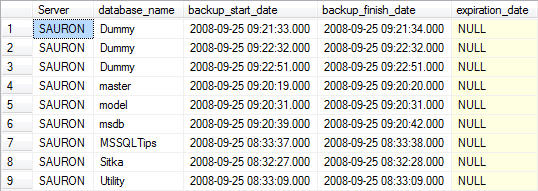
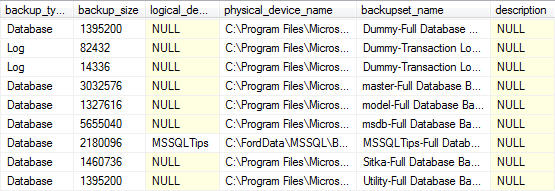
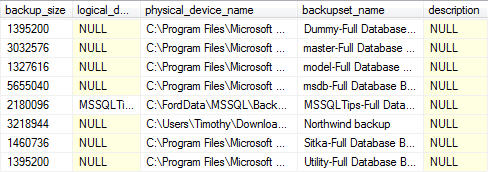
Note: for readability the output was split into two screenshots.
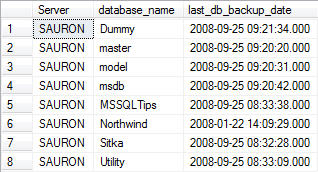
Most Recent Database Backup for Each Database
-------------------------------------------------------------------------------------------
--Most Recent Database Backup for Each Database
-------------------------------------------------------------------------------------------
SELECT
   CONVERT(CHAR(100), SERVERPROPERTY('Servername')) AS Server,
   msdb.dbo.backupset.database_name,
   MAX(msdb.dbo.backupset.backup_finish_date) AS last_db_backup_date
FROM   msdb.dbo.backupmediafamily
   INNER JOIN msdb.dbo.backupset ON msdb.dbo.backupmediafamily.media_set_id = msdb.dbo.backupset.media_set_id
WHERE  msdb..backupset.type = 'D'
GROUP BY
   msdb.dbo.backupset.database_name
ORDER BY
   msdb.dbo.backupset.database_name
Most Recent Database Backup for Each Database – Detailed
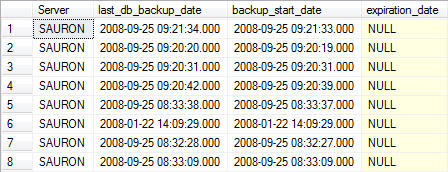
You can join the two result sets together by using the following query in order to return more detailed information about the last database backup for each database. The LEFT JOIN allows you to match up grouped data with the detailed data from the previous query without having to include the fields you do not wish to group on in the query itself.
-------------------------------------------------------------------------------------------
--Most Recent Database Backup for Each Database - Detailed
-------------------------------------------------------------------------------------------
SELECT
   A.[Server],
   A.last_db_backup_date,
   B.backup_start_date,
   B.expiration_date,
   B.backup_size,
   B.logical_device_name,
   B.physical_device_name,
   B.backupset_name,
   B.description
FROM
   (
   SELECT
       CONVERT(CHAR(100), SERVERPROPERTY('Servername')) AS Server,
       msdb.dbo.backupset.database_name,
       MAX(msdb.dbo.backupset.backup_finish_date) AS last_db_backup_date
   FROM    msdb.dbo.backupmediafamily
       INNER JOIN msdb.dbo.backupset ON msdb.dbo.backupmediafamily.media_set_id = msdb.dbo.backupset.media_set_id
   WHERE   msdb..backupset.type = 'D'
   GROUP BY
       msdb.dbo.backupset.database_name
   ) AS A

   LEFT JOIN

   (
   SELECT
   CONVERT(CHAR(100), SERVERPROPERTY('Servername')) AS Server,
   msdb.dbo.backupset.database_name,
   msdb.dbo.backupset.backup_start_date,
   msdb.dbo.backupset.backup_finish_date,
   msdb.dbo.backupset.expiration_date,
   msdb.dbo.backupset.backup_size,
   msdb.dbo.backupmediafamily.logical_device_name,
   msdb.dbo.backupmediafamily.physical_device_name,
   msdb.dbo.backupset.name AS backupset_name,
   msdb.dbo.backupset.description
FROM   msdb.dbo.backupmediafamily
   INNER JOIN msdb.dbo.backupset ON msdb.dbo.backupmediafamily.media_set_id = msdb.dbo.backupset.media_set_id
WHERE  msdb..backupset.type = 'D'
   ) AS B
   ON A.[server] = B.[server] AND A.[database_name] = B.[database_name] AND A.[last_db_backup_date] = B.[backup_finish_date]
ORDER BY
   A.database_name
Note: for readability the output was split into two screenshots.
Databases Missing a Data (aka Full) Back-Up Within Past 24 Hours
At this point we’ve seen how to look at the history for databases that have been backed up. While this information is important, there is an aspect to backup metadata that is slightly more important – which of the databases you administer have not been getting backed up. The following query provides you with that information (with some caveats.)
-------------------------------------------------------------------------------------------
--Databases Missing a Data (aka Full) Back-Up Within Past 24 Hours
-------------------------------------------------------------------------------------------
--Databases with data backup over 24 hours old
SELECT
   CONVERT(CHAR(100), SERVERPROPERTY('Servername')) AS Server,
   msdb.dbo.backupset.database_name,
   MAX(msdb.dbo.backupset.backup_finish_date) AS last_db_backup_date,
   DATEDIFF(hh, MAX(msdb.dbo.backupset.backup_finish_date), GETDATE()) AS [Backup Age (Hours)]
FROM    msdb.dbo.backupset
WHERE     msdb.dbo.backupset.type = 'D'
GROUP BY msdb.dbo.backupset.database_name
HAVING      (MAX(msdb.dbo.backupset.backup_finish_date) < DATEADD(hh, - 24, GETDATE()))

UNION

--Databases without any backup history
SELECT
   CONVERT(CHAR(100), SERVERPROPERTY('Servername')) AS Server,
   master.dbo.sysdatabases.NAME AS database_name,
   NULL AS [Last Data Backup Date],
   9999 AS [Backup Age (Hours)]
FROM
   master.dbo.sysdatabases LEFT JOIN msdb.dbo.backupset
       ON master.dbo.sysdatabases.name  = msdb.dbo.backupset.database_name
WHERE msdb.dbo.backupset.database_name IS NULL AND master.dbo.sysdatabases.name <> 'tempdb'
ORDER BY
   msdb.dbo.backupset.database_name
Now let me explain those caveats, and this query. The first part of the query returns all records where the last database (full) backup is older than 24 hours from the current system date. This data is then combined via the UNION statement to the second portion of the query. That second statement returns information on all databases that have no backup history. I’ve taken the liberty of singling tempdb out from the result set since you do not back up that system database. It is recreated each time the SQL Server services are restarted. That is caveat #1. Caveat #2 is the arbitrary value I’ve assigned to the aging value for databases without any backup history. I’ve set that value at 9999 hours because in my environment I want to place a higher emphasis on those databases that have never been backed up.
Most tips works for SSMS higher 2008 but some of them only for SSMS 2016 and above.
Great thanks to:
Kendra Little
Slava Murygin
Mike Milligan
Kenneth Fisher
William Durkin
John Morehouse
Phil Factor
Klaus Aschenbrenner
Latish Sehgal
Arvind Shyamsundar
SQLMatters
MSSQLTips
Anthony Zanevsky, Andrew Zanevsky and Katrin Zanevsky
Andy Mallon
Aaron Bertrand
Import and Export Settings
Tools > Options > Environment > Import and Export Settings
You can configure so many settings in SSMS and then export it and use on all your computers. Below link provide detailed instruction and awesome Dark theme configuration: Making SSMS Pretty: My Dark Theme
3 Shortcuts can not be changed: Alt + F1, Ctrl + 1 and Ctrl + 2. For another 9 shortcuts my recommendation awesome open source Brent Ozar teams procedures and with some limitations Adam Machanic sp_WhoIsActive:
Right click on database name > Tasks > Generate Scripts …
Selecting a block of text using the ALT Key
By holding down the ALT key as you select a block of text you can control the width of the selection region as well as the number of rows. Also you can activate multi line mode with Shift + Alt keys and using keyboard arrows to format multi line code.
Script Table and Column Names by Dragging from Object Explorer
Save keystrokes by dragging Drag the Columns folder for a table in to auto-type all column names in the table in a single line.
Warning: this doesn’t include [brackets] around the column names, so if your columns contain spaces or special characters at the beginning, this shortcut isn’t for you
Dragging the table name over will auto-type the schema and table name, with brackets.
Disable Copy of Empty Text
Select a block of text to copy;
Move the cursor the place where you want to paste the code;
Accidentally press Ctrl+C again instead of Ctrl+V;
Block of copied text is replaced by an empty block;
This behavior can be disabled in SSMS: go to Tools > Options > Text Editor > All Languages > General > 'Apply Cut or Copy Commands to blank lines when there is no selection' and uncheck the checkbox.
Client Statistics
When you enable that option for your session, SQL Server Management Studio will give you more information about the client side processing of your query.
The Network Statistics shows you the following information:
Number of Server Roundtrips
TDS Packets sent from Client
TDS Packets received from Server
Bytes sent from Client
Bytes received from Server
The Time Statistics additionally shows you the following information:
Client Processing Time
Total Execution Time
Wait Time on Server Replies
Configure Object Explorer to Script Compression and Partition Schemes for Indexes
Is this index compressed or partitioned?
By default, you wouldn’t know just by scripting out the index from Object Explorer. If you script out indexes this way to check them into source code, or to tweak the definition slightly, this can lead you to make mistakes.
You can make sure you’re aware when indexes have compression or are partitioned by changing your scripting settings:
Click Tools – > Options -> SQL Server Object Explorer -> Scripting
Scroll down in the right pane of options and set both of these to True
Script Data Compression Options
Script Partition Schemes
Click OK
Using GO X to Execute a Batch or Statement Multiple Times
The GO command marks the end of a batch of statements that should be sent to SQL Server for processing, and then compiled into a single execution plan. By specifying a number after the ‘GO’ the batch can be run specified number of times. This can be useful if, for instance, you want to create test data by running an insert statement a number of times. Note that this is not a Transact SQL statement and will only work in Management Studio (and also SQLCMD or OSQL). For instance the following SQL can be run in SSMS :
CREATETABLETestData(ID INT IDENTITY (1,1), CreatedDate DATETIME)
GO
INSERT INTO TestData(CreatedDate) SELECT GetDate()
GO 10
This will run the insert statement 10 times and therefore insert 10 rows into the TestData table. In this case this is a simpler alternative than creating a cursor or while loop.
SSMS Template Replacement
One under-used feature of Management Studio is the template replacement feature. SSMS comes with a library of templates, but you can also make your own templates for reusable scripts.
In your saved .sql script, just use the magic incantation to denote the parameters for replacement. The format is simple: <label, datatype, default value>
Then, when you open the .sql script, you hit CTRL + Shift + M, and SSMS will give you a pop-up to enter your replacement values.
Color coding of connections
SQL Server Management Studio has the capability of coloring the bar at the bottom of each query window, with the color dependent on which server is connected. This can be useful in order to provide a visual check of the server that a query is to be run against, for instance to color code production instances as red, development as green and amber as test. This can also be used in conjunction with Registered Servers and CMS (Central Management Server). To add a color bar when connecting to the server click on the Options button in the Connect to Database Engine window and then select the Connection Properties window. Select the check box towards the bottom of the window and use the ‘Select…’ button to choose a color.
SQLCMD mode
Switching on SQLCMD mode enables a number of useful extra scripting style commands in SSMS. In particular you can use it to change to the connection credentials within the query window, so that you can run a query against multiple servers from the same query window. There are more details of how to do this here: Changing the SQL Server connection within an SSMS Query Windows using SQLCMD Mode
Script multiple objects using the Object Explorer Details Windows
Individual database objects, such as a table or stored procedure, can be scripted within SSMS by right clicking on the object within Object Explorer and selecting the appropriate item in the drop down menu. However if you have a lot of objects to script that can quickly become time consuming. Fortunately it’s possible to select multiple objects and script them up all together in a single query window. To do this just open the Object Explorer Details window from the View menu (or press the F7 key). If you want to script up multiple (or all) tables, select the Tables item under the relevant database in Object Explorer. A list of all tables appears in the Object Explorer Details window. Select the tables you want to script (using the Control key if necessary) and then right click and select which script option you want – e.g. to create a table create script for all tables
Registered Servers / Central Management Server
If you have a lot of servers then re-entering the details in Object Explorer every time you start SSMS can be frustrating and time consuming. Fortunately there are two facilities within SSMS that enable these details to be entered just once and “remembered” each time you open up SSMS. These two facilities are Registered Servers and Central Management Servers. These were introduced in different versions of SQL Server and work in different ways, each has its own advantages and disadvantages so you may want to use both.
To add a registered server open the Registered Servers window from the View menu (or click CTRL + ALT + G), the window should appear in the top left corner of SSMS. Right click on the Local Server Groups folder and select ‘New Server Registration…’. Enter the server details and close the window. This new server should then appear under Local Server Groups, you can then right click and open up the server in Object Explorer or open a new query window. The server details are stored locally in an XML file and so will appear next time you open SSMS. If you have a lot of servers then you can also create Server Groups to group together similar servers. One advantage of creating groups (other than being able to logically group similar servers together) is that you can run a query against all servers in the group, by right clicking the group and selecting ‘New Group’.
Central Management Server are similar to Registered Servers but with some differences, the main one being that the server details are stored in a database (the Central Management Server) rather than a local file. A significant limitation with CMS is that the CMS server itself can’t be included in the list of servers.
Splitting the Query Window
The query window in SSMS can be split into two so that you can look at two parts of the same query simultaneously. Both parts of the split window can be scrolled independently. This is especially useful if you have a large query and want to compare different areas of the same query. To split the window simply drag the bar to the top right hand side of the window as shown below.
The splitter bar allows you to view one session with two panes. You can scroll in each pane independently. You can also edit in both the top and bottom pane.
Moving columns in the results pane
It may not be immediately obvious but you can switch columns around in the results pane when using the grid view, by dragging the column headers and dropping them next to another column header. This can be useful if you want to rearrange how the results are displayed without amending the query, especially if you have a lot of columns in your result set. This works only for one column.
Generating Charts and Drawings in SQL Server Management Studio
You don’t have to settle for T-SQL’s monochrome text output. These stored procedures let you quickly and easily turn your SELECT queries’ output into colorized charts and even computer-generated art. To turn your own data into a line, column, area, or bar chart using the Chart stored procedure, you need to design a SELECT query that serves as the first parameter in the stored procedure call.
One such change SSMS got for free is the connection resiliency logic within the SqlConnection.Open() method. To improve the default experience for clients which connect to Azure SQL Database, the above method will (in the case of initial connection errors / timeouts) now retry 1 time after sleeping for 10 seconds. These numbers are configurable by properties called ConnectRetryCount (default value 1) and ConnectRetryInterval (default value 10 seconds.) The previous versions of the SqlConnection class would not automatically retry in cases of connection failure.
There is a simple workaround for this situation. It is to add the following parameter string into the Additional Connection Parameters tab within the SSMS connection window. The good news is that you only need to do this once, as the property is saved for future sessions for that SQL Server (until of course it is removed by you later.)
ConnectRetryCount=0
Working with tabs headers
You can view SPID in tabs header, quickly open script containing folder or copy script file path.
Hiding tables in SSMS Object Explorer
You can actually hide an object from object explorer by assigning a specific extended property:
Now UserName won’t be able to see Table in Object Explorer. In Fact, they won’t be able to see the table in sys.tables or INFORMATION_SCHEMA.TABLES
VIEW DEFINITION is the ability to see the definition of the object. In the case of SPs the code, same with Views and in the case of Tables it’s the columns definitions etc.
UnDock Tabs and Windows for Multi Monitor Support
From SSMS 2012 and onwards, you can easily dock/undock the query tabs as well as different object windows inside SSMS to make better use of the screen real estate and multiple monitors you have.
RegEx-Based Finding and Replacing of Text in SSMS
So often, one sees developers doing repetitive coding in SSMS or Visual Studio that would be much quicker and easier by using the built-in Regular-Expression-based Find/Replace functionality. It is understandable, since the syntax is odd and some features are missing, but it is still well-worth knowing about.
My favorite regex: replace \t on \n,. It useful in many cases when you have column names copied from, for example, Excel and need quickly get sql query.
Changing what SSMS opens on startup
You can customize SSMS startup behavior in Tools -> Options -> Environment -> Startup and hide system objects in Object Explore:
Also you can disable the splash screen – this cuts the time it takes SSMS to load for versions before SSMS 17. Right click your shortcut to SSMS and select properties. Enter the text -nosplash right after the ending quote in the path:
It is useful to create a solution of commonly used SQL scripts to always load at start-up.
Display the Solution Explorer by pressing Ctrl+Alt+L or clicking View -> Solution Explorer.
Then right click the Solution "Solution1" (0 projects) text and select Add -> New Project.
Use the default SQL Server Scripts template and give your solution a clever name.
Rename all of your SQL Code Snippets so the extension is .SQL. Drag them into the queries folder within the Solution Explorer.
Open Windows explorer and browse to the location of your solution. Copy file location address to your clipboard. Go back to your SSMS shortcut properties and add within double quotes the location and file name of your solution before the “-nosplash”.
This is the complete text within my shortcut properties:
"C:\Program Files (x86)\Microsoft SQL Server\140\Tools\Binn\ManagementStudio\Ssms.exe" "C:\Users\taranov\Documents\SQL Server Management Studio\Projects\MySQLServerScripts.ssmssln" -nosplash
Modifying New Query Template
You can modified New Query template for any instance SQL Server:
The options represent the SET values of the current session. SET options can affect how the query is execute thus having a different execution plan. You can find these options in two places within SSMS under Tools -> Options -> Query Execution -> SQL Server -> Advanced:
As well as Tools -> Options -> Query Execution -> SQL Server -> ANSI:
Using the interface to check what is set can get tiresome. Instead, you can use the system function @@OPTIONS. Each option shown above has a BIT value for all 15 options indicating whether or not it is enabled.
@@OPTIONS takes the binary representation and does a BITWISE operation on it to produce an integer value based on the sum of which BITS are enabled.
Default value for SELECT @@OPTIONS is 5496. Let’s assume for a moment that the only two options that are enabled on my machine are ANSI_PADDING and ANSI_WARNINGS. The values for these two options are 8 and 16, respectively speaking. The sum of the two is 24.
/*************************************************************** Author: John Morehouse Summary: This script display what SET options are enabled for the current session. You may alter this code for your own purposes. You may republish altered code as long as you give due credit. THIS CODE AND INFORMATION IS PROVIDED "AS IS" WITHOUT WARRANTY OF ANY KIND, EITHER EXPRESSED OR IMPLIED, INCLUDING BUT NOT LIMITED TO THE IMPLIED WARRANTIES OF MERCHANTABILITY AND/OR FITNESS FOR A PARTICULAR PURPOSE.***************************************************************/SELECT'Disable_Def_Cnst_Chk'AS'Option', CASE @@options & 1 WHEN 0 THEN 0 ELSE 1 END AS'Enabled/Disabled'UNION ALLSELECT'IMPLICIT_TRANSACTIONS'AS'Option', CASE @@options & 2 WHEN 0 THEN 0 ELSE 1 END AS'Enabled/Disabled'UNION ALLSELECT'CURSOR_CLOSE_ON_COMMIT'AS'Option', CASE @@options & 4 WHEN 0 THEN 0 ELSE 1 END AS'Enabled/Disabled'UNION ALLSELECT'ANSI_WARNINGS'AS'Option', CASE @@options & 8 WHEN 0 THEN 0 ELSE 1 END AS'Enabled/Disabled'UNION ALLSELECT'ANSI_PADDING'AS'Option', CASE @@options & 16 WHEN 0 THEN 0 ELSE 1 END AS'Enabled/Disabled'UNION ALLSELECT'ANSI_NULLS'AS'Option', CASE @@options & 32 WHEN 0 THEN 0 ELSE 1 END AS'Enabled/Disabled'UNION ALLSELECT'ARITHABORT'AS'Option', CASE @@options & 64 WHEN 0 THEN 0 ELSE 1 END AS'Enabled/Disabled'UNION ALLSELECT'ARITHIGNORE'AS'Option', CASE @@options & 128 WHEN 0 THEN 0 ELSE 1 END AS'Enabled/Disabled'UNION ALLSELECT'QUOTED_IDENTIFIER'AS'Option', CASE @@options & 256 WHEN 0 THEN 0 ELSE 1 END AS'Enabled/Disabled'UNION ALLSELECT'NOCOUNT'AS'Option', CASE @@options & 512 WHEN 0 THEN 0 ELSE 1 END AS'Enabled/Disabled'UNION ALLSELECT'ANSI_NULL_DFLT_ON'AS'Option', CASE @@options & 1024 WHEN 0 THEN 0 ELSE 1 END AS'Enabled/Disabled'UNION ALLSELECT'ANSI_NULL_DFLT_OFF'AS'Option', CASE @@options & 2048 WHEN 0 THEN 0 ELSE 1 END AS'Enabled/Disabled'UNION ALLSELECT'CONCAT_NULL_YIELDS_NULL'AS'Option', CASE @@options & 4096 WHEN 0 THEN 0 ELSE 1 END AS'Enabled/Disabled'UNION ALLSELECT'NUMERIC_ROUNDABORT'AS'Option', CASE @@options & 8192 WHEN 0 THEN 0 ELSE 1 END AS'Enabled/Disabled'UNION ALLSELECT'XACT_ABORT'AS'Option', CASE @@options & 16384 WHEN 0 THEN 0 ELSE 1 END AS'Enabled/Disabled';
SQL Server Diagnostics Extension
Analyze Dumps – Customers using this extension will be able to debug and self-resolve memory dump issues from their SQL Server instances and receive recommended Knowledge Base (KB) article(s) from Microsoft, which may be applicable for the fix. The memory dumps are stored in a secured and compliant manner as governed by the Microsoft Privacy Policy.
For example, Joe, a DBA from Contoso, Ltd., finds that SQL Server has generated a memory dump while running a workload, and he would like to debug the issue. Using this feature, John can upload the dump and receive recommended KB articles from Microsoft, which can help him fix the issue.